|
Create Virtual Machine #3
2011/03/06 |
| If you install Desktop Environment,
it's possible to create a Virtula machine on GUI. This example shows to install Fedora 14 on GUI.
|
|
| [1] | Install some packages first. |
|
root@dlp:~# aptitude -y install virt-manager hal
|
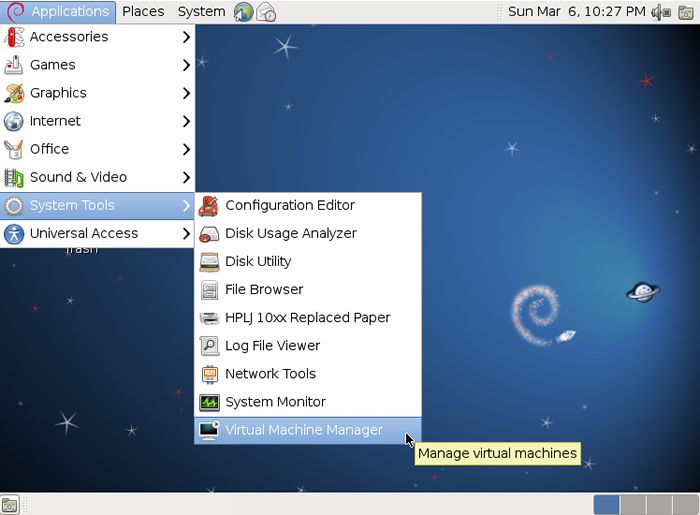
| [2] | Start X Window System and run 'Virtual Machine Manager'. |
|
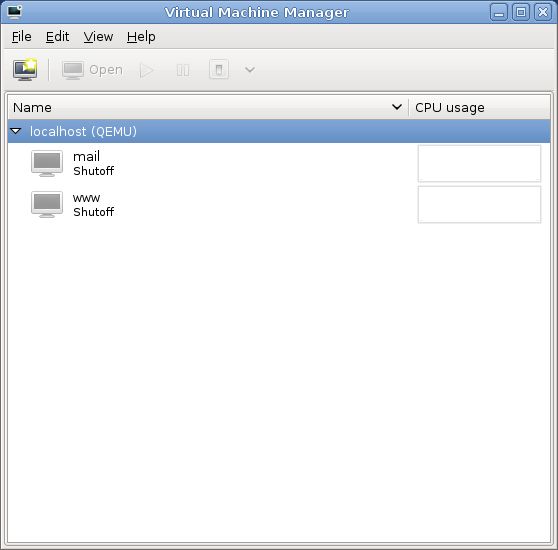
| [3] | Connect to QEMU first and Click 'New' button (PC icon) and open a wizard to create a new Virtual Machine. |
|
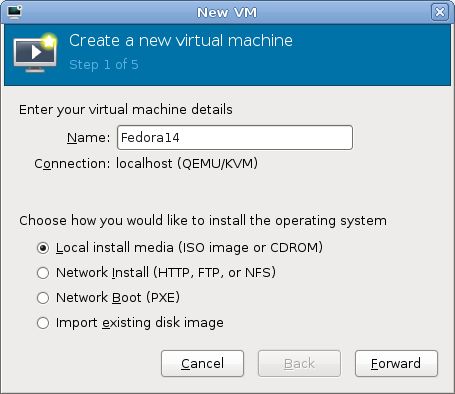
| [4] | Specify the name of virtual machine and installation source. This example selects local media. |
|
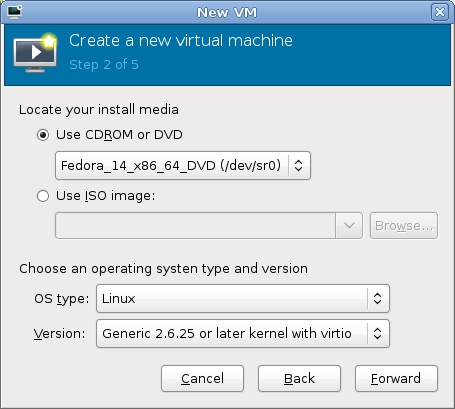
| [5] | Select Installation media or ISO image, and specify OS type and version. |
|
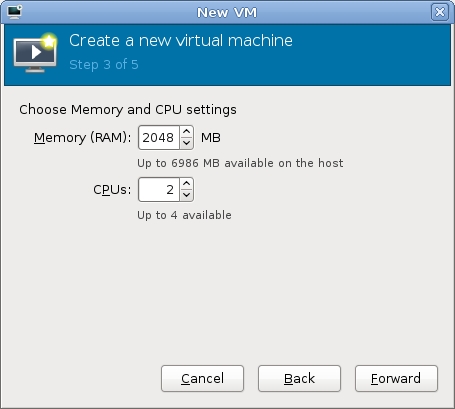
| [6] | Specify amount of memories and number of virtula CPUs. |
|
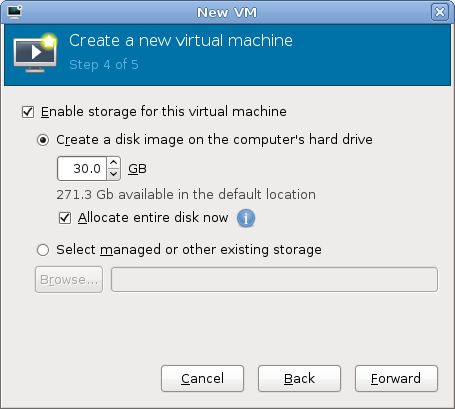
| [7] | Specify amount of disks. |
|
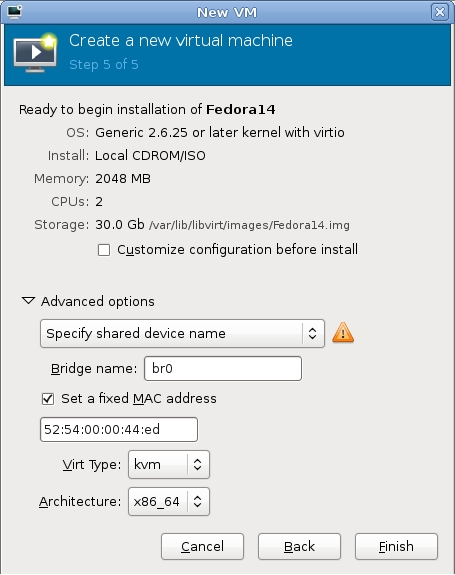
| [8] | Open 'Advanced options' and make sure the settings for networking or architecture are correct. |
|
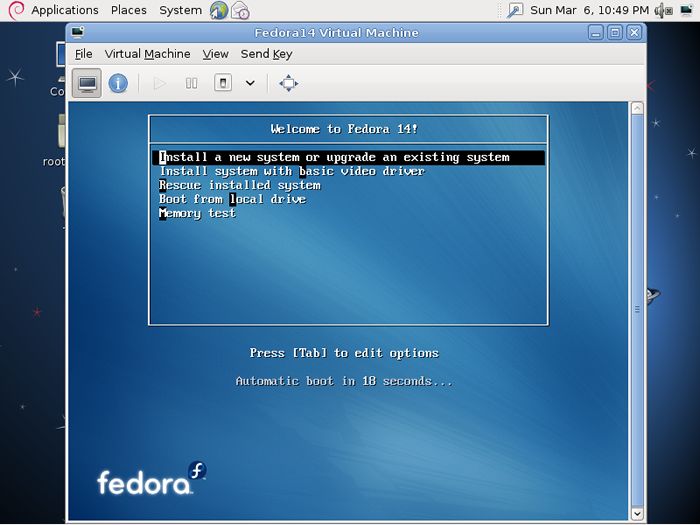
| [9] | Installation starts. |
|
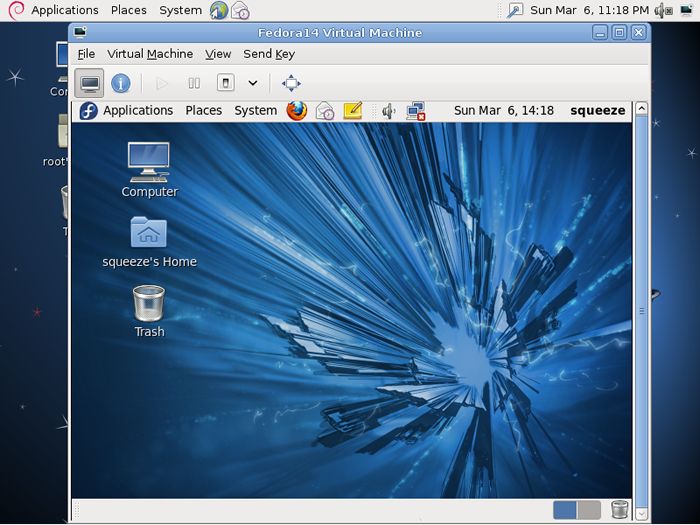
| [10] | Installation finished and Fedora 14 started. |
|